FAQs

How does the level of accuracy change as curvature of surfaces increases?

Question: How does the level of accuracy change as curvature of surfaces increases? In other words, what level of curvature causes so much crimping in the sensor that readings lose accuracy? Is contact area affected by the curvature or does this just affect the pressure readings?

Answer: Curvature or wrinkling of the sensor will produce a preload on the sensor. This will affect both the pressure readings and the measured contact area. The extent of this preload is dependent on the radius of curvature and on the pressure range of the sensor. Sensors with lower pressure ranges are more sensitive and will be more inclined to produce readings induced by curvature of the sensor.

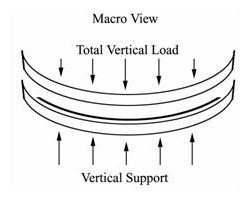
Curved Contact Surfaces When studying contact between soft or curved objects such as the foam of a bed or chair and human flesh, or artificial knee joints, calibrate with the objects being studied, not with an equilibrator. That way the curvature that evolves between the surfaces in calibration is similar to the curvature of the experiments. To better understand this, consider a free body diagram of a concave curved surface supporting a convex vertical load. The total resulting vertical force vector results from many individual local vectors with opposing horizontal components, which cancel out. Tekscan sensors respond to the individual local normal forces, and the software sums these forces (assuming the sensor is flat).

Curved contact surface

Tekscan sensors are made with s dimensionally stable substrate: polyester sheet. A dimensionally stable sheet rolls nicely around a simple curve such as a cylinder or cone. Thus, measurements can easily be taken on a coffee cup, rolling pin, or the body of a ballpoint pen. A dimensionally stable material has difficulty wrapping smoothly over a ball, or someone´s nose or chin. If the sensor crinkles, or develops folds, it is prone to report high-pressure output where little or no pressure is applied. These locations may be “tared out”, the bottom threshold of the legend can be raised, or they can be edited out of the movies altogether.

When loading soft interfaces, such as a crash dummy or a person onto a foam/cushion, try to calibrate with the actual materials and with the actual profiles/curvature. Curved contact surfaces with complex curves may be measured with Tekscan´s sensor models 6900, 9801, or 9830 since they have narrow sensing areas (“fingers’) that lend themselves to positioning on contoured surfaces with minimal artifact generated from the geometry.

Link to this FAQ

Periodic saturated (red) frames during recordings with Tekscan PCI electronics and computers with Hyperthreading enabled
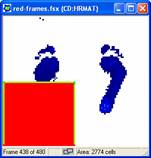
Issue: Periodic saturated (red) frames during recordings with Tekscan PCI electronics and computers with Hyperthreading enabled

Saturated values in frameSaturated values in frameSolution: This occurs when collecting recordings with Tekscan PCI electronics connected to a computer with a Pentium 4 processor 3.0 GHz or higher and hyperthreading technology enabled. While collecting the recording, occasional frames will have large areas that display saturated values. These values are displayed as red blocks within the recording window as shown in the image.

When hyperthreading technology is enabled in the computer's processor, this creates a timing problem while collecting data from the Tekscan PCI board. Hyperthreading is technology introduced by Intel with their Pentium 4 processors. It allows a single computer processor to act as two parallel processors and execute two threads of software code simultaneously. The Tekscan recording process requires the full resources of the processor, especially when recording at speeds over 50 Hz.

The presence of two processors can be seen in the windows device manager. To see this, right click on "My Computer" and select Properties. Under the Hardware tab will be a button to open the Device Manager. Click the + sign next to Processors and there will be two processors listed if the computer is using hyperthreading or has two physical processors.
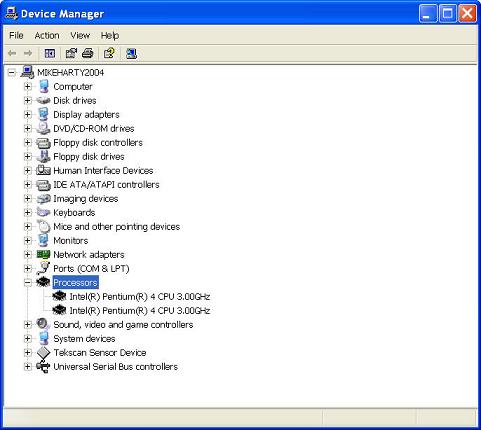
Device Manager - Processors

When hyperthreading is enabled on a computer, this creates an occasional timing problem with the Tekscan PCI board during recording. This causes the Tekscan software to momentarily lose communication with the PCI board and when this occurs, the software displays saturated data for these frames.

This problem can be resolved by disabling Hyperthreading in the BIOS of the computer. This should not prevent other software programs from running, but it is possible that some programs specifically designed to take advantage of hyperthreading may perform more slowly. The manufacturers of these programs should have more information on how disabling hyperthreading may affect their software.

To enter the BIOS, reboot the computer and follow the commands for entering Setup that appear immediately after the computer starts and before Windows begins loading. Typically there are instructions to push the F2 key to enter the Setup console, but this key may be different on some computers.

Once in the BIOS, there should be a menu for CPU information, and within this menu, a toggle switch to turn hyperthreading On or Off. This should be set to Off. Then Exit the BIOS and Save the changes.

Because making changes to the BIOS can have other effects on your computer, any users unsure of making these changes themselves should contact their computer's manufacturer for more details on BIOS changes and disabling hyperthreading.

This problem will also exist on computers that have two physical processors. If this is the case, the computer's manufacturer may be able to offer instructions for disabling one of the processors. Otherwise, a computer with only a single processor will be required for the Tekscan software.

Link to this FAQ

My software does not recognize my EH-1 USB Handle. I get the error: No Handles Found

Issue: My software does not recognize my USB Handle.  I get the error: No Handles Found

Solution: Note that the EH-1 USB Handle is an older model.  It will not be possible to use an EH-1 Handle with a 64-bit computer.

First, check the indicator light at the end of the Handle near the cord. If this is not lit, then the Handle is not getting power.

If the indicator light is amber in color, rather than green, you will want to uninstall the device driver for the USB Handle and then, reboot the computer.  You should confirm that USB is listed as one of the available Handle types in the No Handles Found error message.

  • Right-click on My Computer.
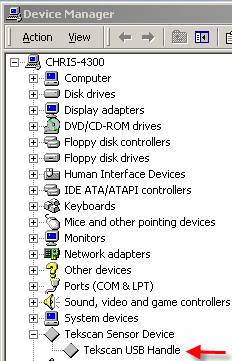
  • Select: Properties.  On the Hardware tab, click the button: Device Manager.
  • Find Tekscan in the list.

Device manager

  • Right-click on the driver for the USB Handle.  Select Uninstall.
  • Then, unplug the USB cable and reboot your computer.  When it comes back up, plug in the USB cable.  Windows should now be able to find and install the driver for the Handle automatically.

If Windows cannot find the driver automatically, insert your Tekscan CD,  exit from the CD's installation program, and then have Windows find the driver on the CD.

Always plug the handle into the same USB port on your computer. Otherwise, Windows will force you to reload the device driver.

Link to this FAQ

How do I calibrate my FlexiForce Sensor?

Question: How do I calibrate my FlexiForce™ Sensor?

Answer: Below please find a "Quick Start" Calibration Guide for FlexiForce Sensors.

Introduction:

Conditioning the FlexiForce sensors before every use is recommended. In addition, calibrating the sensors is recommended before initial use. The following video demonstrates the conditioning and calibration procedures.

You can also download and print the Quick Start Calibration Guide for FlexiForce Sensors.


Link to this FAQ