FAQs

T-Scan ODBC Errors

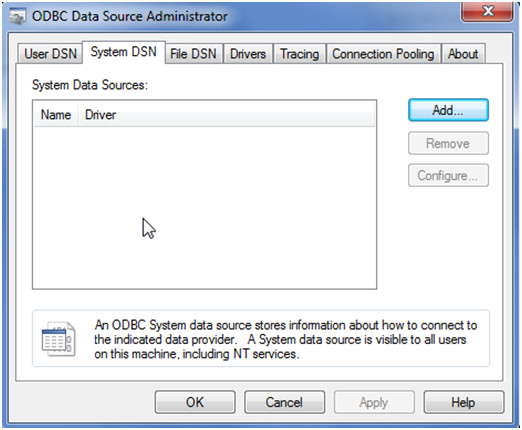
When T-Scan™ shows "ODBC" errors, configure ODBC Data Source Administrator:

T-Scan ODBC errors

On XP machines go to Control Panel | Administrative Tools | Data Sources (ODBC)

On 32-bit Windows machines run C:\Windows\System32\odbcad32.exe

On 64-bit Windows machines run C:\Windows\SysWOW64\odbcad32.exe

On the "System DSN" tab, configure Patient Registration.

Link to this FAQ

Error: Handle Driver is Not Loading - Error Code 52

Issue: T-Scan or I-Scan doesn't see the Evolution handle. The Device Manager shows Code 52 error.
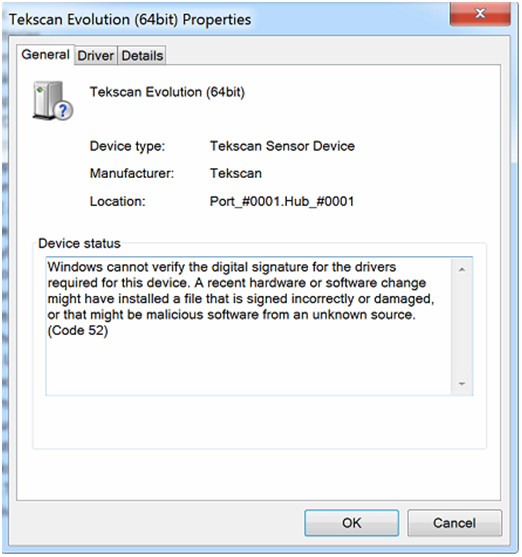
T-Scan 9.1 Handle Driver Error

Solution:

First enable Windows Updates on your system. Install all the critical updates and see if this fixes the Code 52 error.

If not, this could be caused by a required security patch from Microsoft (that is missing). Info on the update needed:

https://support.microsoft.com/en-us/kb/3033929

Download of the update:

https://technet.microsoft.com/en-us/library/security/3033929

"SHA-2 certificates require KB3033929 on Windows 7

If your certificate uses SHA-2 or has SHA-2 certificates in its chain of trust and you are using it to sign kernel modules, then you should be aware of KB3033929, an update for Windows 7 distributed through Windows Update. On versions of Windows 7 without this update, the kernel will reject signatures made with certificates that use SHA-2, so they cannot be used to get a kernel module to load."

Select your Windows OS, download, install and re-boot the computer.

Link to this FAQ

How to download and install TeamViewer?

Instructions:

  1. Download the TeamViewer file here.
  2. Double-click to install TeamViewer
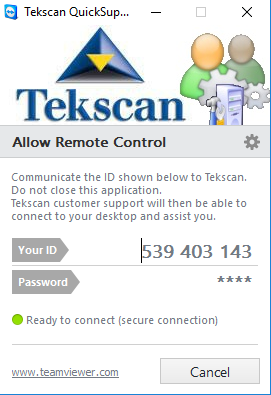
  3. Provide the 9-digit ID (Example shown below)

    TeamViewer ID


    Note: If there are any errors downloading or installing the TeamViewerQS.exe above, please use this .zip file link:

Download TeamViewer

  1. Click the link above to open the download dialog box
  2. Unzip the downloaded file.
  3. Double-click and install TeamViewer
  4. Tekscan will need your 9-digit ID

Link to this FAQ

What are the dental T-Scan computer requirements?

MINIMUM SYSTEM REQUIREMENTS

Windows® Based
  • Windows 10 or 11 Home or Pro versions (64-bit version only. ARM / Snapdragon not supported. How to check if my OS is 64bit.)
  • Memory: 8 GB RAM minimum, recommended 16 GB
  • 20 GB Disk Space
Virtual Windows Based (running on Mac OS)
  • Mac with minimum 8 GB RAM, recommended 16 GB RAM
  • VMware® Fusion®  or Parallels® software
  • Windows® 10  and 11 software 64-bit (ARM not supported)
  • 75 GB Disk Space


Link to this FAQ

I have an RMA Number. What do I do?

After your RMA number has been issued, you should have received an email with instructions, which are printed below.

  1. Mark your RMA number clearly in large text on the outside of the package. We are unable to accept packages which do not clearly show the RMA number on the outside of the box.
  2. Inside the package, please include a letter providing your name, your RMA number, your return shipping address, and a brief description of the problem.
  3. Please package the returned product very carefully to prevent damage during transit. We recommend the original box and packing material. If the original packing is not available, we recommend at least one inch of firm padding all the way around the product. The package should be trackable and insured for an appropriate value.
  4. Ship the package to:

Tekscan, Inc.
333 Providence Highway
Norwood, MA 02062

Attention: RMA # RMAxxxxxx (your issued number)

Note: You are responsible for the cost of shipping the product to Tekscan. We will gladly match your shipping method (e.g., Ground, 2-Day, overnight, etc.) for the return shipment back to you. However, please be aware that any local customs charges will not be paid by Tekscan.

If you have any further questions regarding your RMA, please contact Tekscan Technical Support.

Link to this FAQ

How Do I Obtain an RMA Number?

An RMA number can only be issued by contacting Tekscan Technical Support.

We will help you with the necessary troubleshooting steps. If a product is in need of Tekscan evaluation, the Customer Support team member will issue an RMA number to you.

If you're calling about a unit:

  • Be ready to operate the unit
  • Have the product serial number available
  • Call when the unit is powered and exhibiting the symptom

Link to this FAQ

What is an RMA number?

RMA is an acronym for Return Material Authorization.

A RMA number is assigned to the service order that is created when a customer requests repair, or service of product believed to be defective. RMA numbers are required for all service and repair work performed by Tekscan, Inc. The RMA number will be provided to the customer after successfully providing the information needed to create the service order.

This FAQ entry details the steps to obtaining an RMA number.

Link to this FAQ

How do I set-up and integrate Dentrix G5 with T-Scan 8.1?

Integrating your Dentrix G5 patient database with T-Scan™ 8.1 is an easy 4 step process.

  1. Enter your patient into your Dentrix G5 patient database
  2. Open T-Scan in your operatory
  3. Synch T-Scan and your Dentrix G5 patient database (this will only need to be done on the initial installation of T-Scan 8.1)
  4. Open the patient's file and proceed with data collection!

Link to this FAQ

Error: No More Available Handles

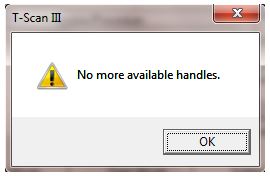
Issue: When trying to open a new Real-Time Window, you receive the error message: "No more available handles" (shown below).

No more available handles.No more available handles.

Solution: Close the software. Plug in the Evolution™ Handle (or VersaTek™ Hub and Cuffs). Then open the software.

If you are creating a new recording, the Evolution Handle (or VersaTek Hub and Cuffs) must be plugged in before starting the software. If you plug in the Hardware after the Tekscan software is running, you will see this error message when attempting to open a new Real-Time Window.

Note: In rare cases, a system reboot may be required.

Link to this FAQ

Does Tekscan software support local languages?

Question: Does Tekscan software support local languages?

Answer: Tekscan systems support a multitude of languages, including English, Chinese, French, German, Italian, Japanese, Korean, Russian and Spanish. Please refer to the table below to see full language availability.

Product Chinese Traditional Chinese Dutch English French German Greek Italian Japanese Korean Polish Russian Spanish
API1 (n/a)                          
API2 (n/a)                          
BPMS™ X   X X X X X X X X X X X
CoM'Nalysis™       X                  
CONFORMat™ X   X X X X X X X X X X X
ELF™       X                  
FastScan           X              
FastScan Mobile           X              
F-Scan™ X X X X X X X X X X X X X
F-Scan™ Mobile X   X X X   X X X X   X X
Grip™ X X X X X X X X X X X X X
Handheld       X                  
Hoof™ X X X X X X X X X X X X X
HR Mat™ X X X X X X X X X X X X X
I-Scan™ X   X X X X X X X X X X X
MatScan™ X X X X X X X X X X X X X
Presto-Scan™ X   X X X X X X X X X X X
Saddle™ X X X X X X X X X X X X X
TireScan™ X   X X X X X X X X X X X
T-Scan™ X   X X X X X X X X X X X
Walkway™       X   X              
Wiper™ X     X X X   X X X   X X

Note: Additional Software modules like SAM™ (Sway Analysis Module™), STAM™ (Stance Timing Analysis Module™), and TAM™ (Timing Analysis Module™) are supported by the same languages as their parent software.

Link to this FAQ